
VPN (Virtual Private Network)
VPN is a service HVL offers to all students and employees who need a secure connection—often called a ‘tunnel’—to access internal resources from outside the campus. Employees’ PCs will also be better protected when outside the campus network, as VPN is always active on HVL-issued computers.
Do you need VPN?
· If you need to retrieve a license from the license server while off campus.
· Access to research data via SILAF and the file gateway from outside the campus.
· Increased security for your PC when you are off campus.
Use of VPN for employees on HVL computers
The VPN agent will always try to connect and start the tunnel, ensuring you are maximally protected when on the move. This can be especially important on guest networks at hotels, airports, cafés, etc. Through the tunnel, you get the same access as you would on campus.
You should not need to log off unless there is a specific reason to do so (you will be asked for confirmation and a reason when you click “Disconnect”). Always stay logged in and connected — that’s the best option.
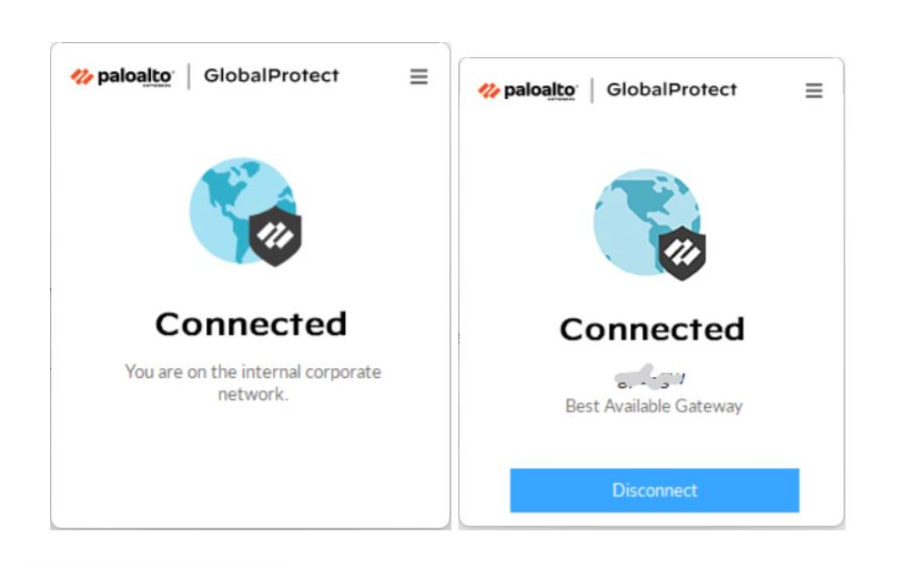
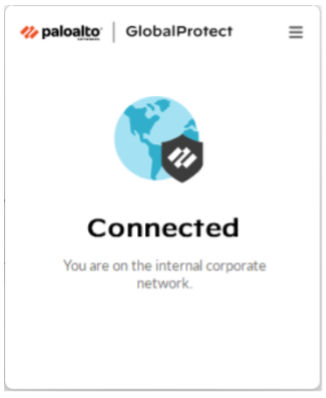
On campus, it will also be logged in, but without an active VPN tunnel, since you are internal. The status will appear as follows when on campus and when off campus, respectively:
Use of VPN for students and others using a personal computer
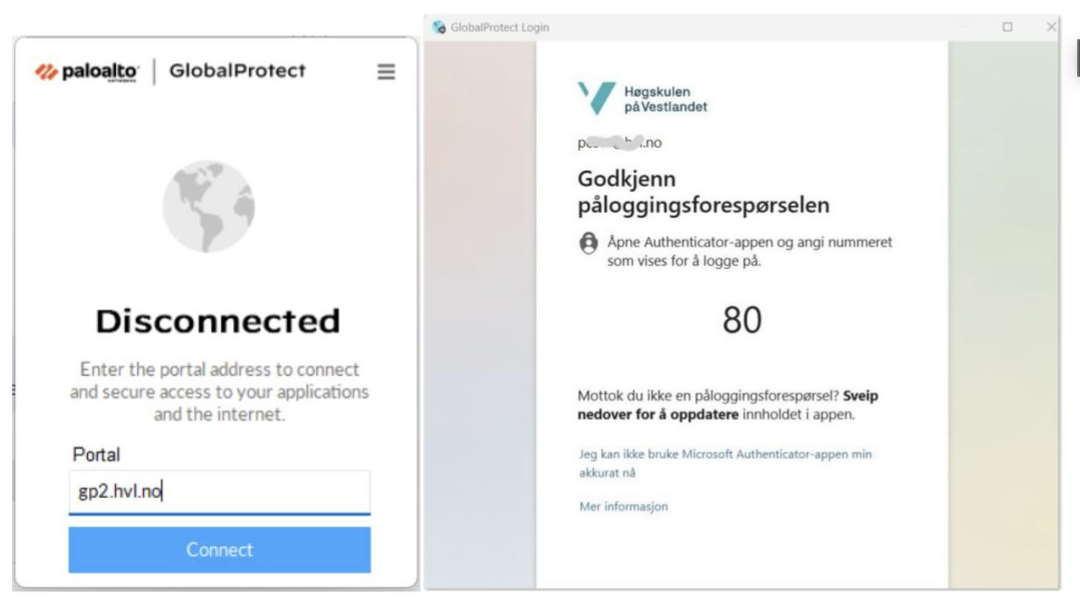
The VPN client connected to gp2.hvl.no will not start automatically, but you can connect whenever you need it. You may stay logged in for extended periods if you want extra protection against internet threats. To connect, find the GlobalProtect icon on your computer and click Connect. Then, if prompted, log in with your username (short name with @hvl.no) and password, and use MFA (multi-factor authentication) when requested. (See the section on manual installation.)
Here you can see the status in disconnected mode and the window for code confirmation.
Checking the status of the VPN
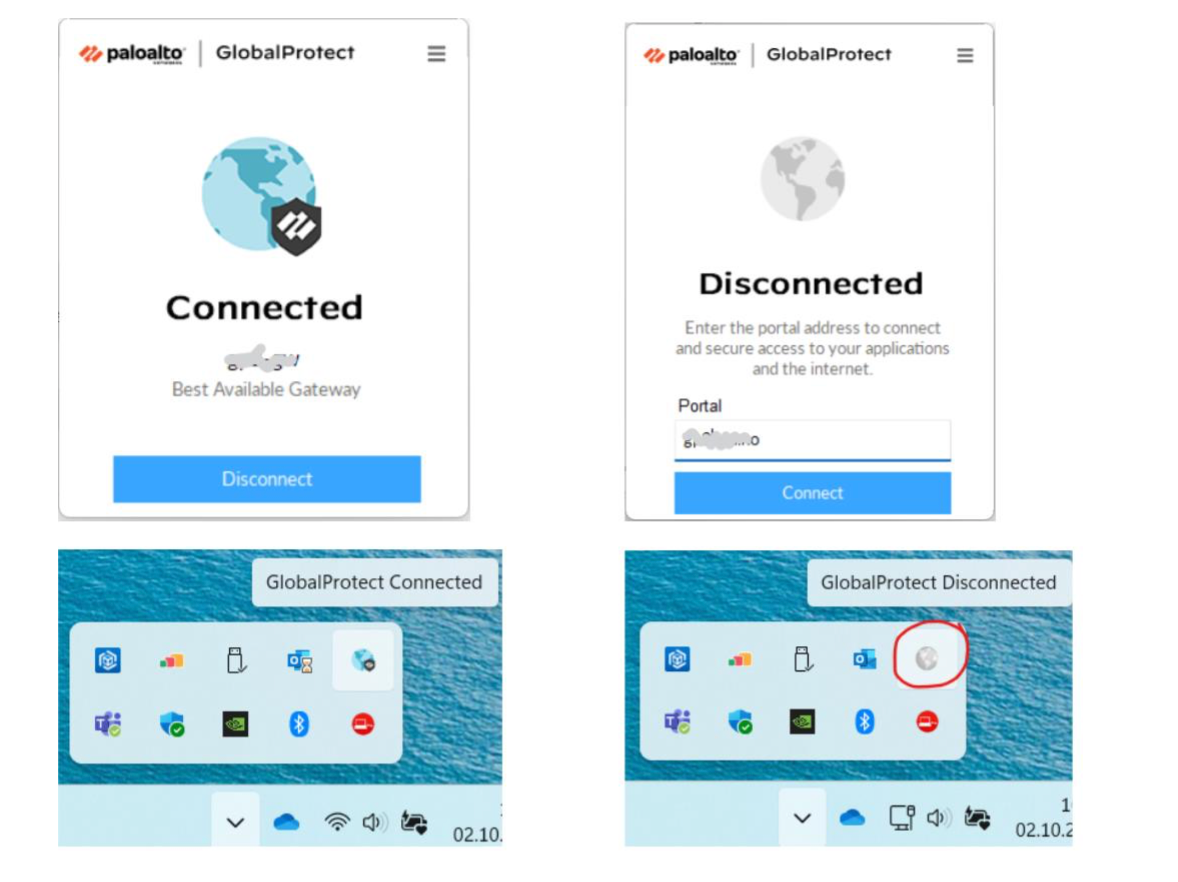
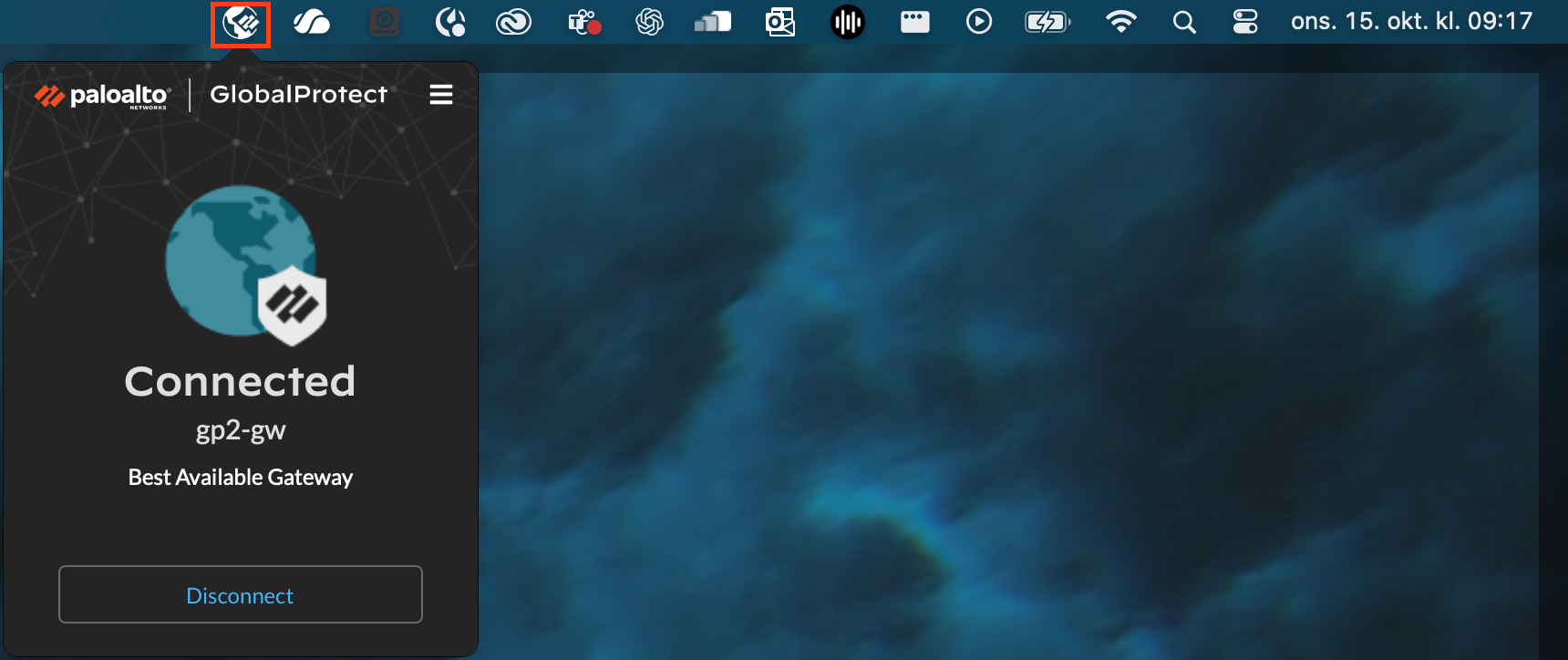
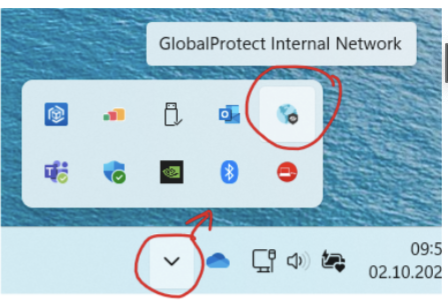
You can always check the status by finding the icon on the taskbar.
If the globe is blue-green, you are connected; if it is gray, you are disconnected. A message will appear if you open the agent.
Here, you can also check that you are using the correct portal:
gp1.hvl.no is for HVL-managed computers, and gp2.hvl.no is for all other PCs.
PC:
Mac:
Hardware and account requirements
Employees must have a work computer (Mac or Windows) managed by HVL (Intune compliant) in order to receive full rights and access equivalent to being on campus.
All others — students, external users, and employees with personal or non-HVL-managed computers — will have more limited access to internal and other highly protected resources.
The user account must have Microsoft multi-factor authentication (MFA) enabled.
Installing the GlobalProtect VPN agent – Employee
On HVL-managed computers (Windows and Mac PCs), employees have GlobalProtect VPN pre-installed.
It will also start automatically. The first time you use it, you may be asked for your username, password, and possibly MFA in a separate window.
On campus, you can see the following status if you open it from the taskbar:
Installing the GlobalProtect VPN agent – Students and other computers
You must download the VPN agent yourself, choose the correct version, and install it:
Windows: https://gp2.hvl.no/global-protect/msi/GlobalProtect64.msi
MacOS: https://gp2.hvl.no/global-protect/msi/GlobalProtect.pkg
Once the program is installed, you’ll find it on the taskbar in Windows and in Launchpad on Mac.
Enter the portal address gp2.hvl.no in the appropriate field and click Connect.
Then log in with your username, password, and confirm with MFA before you’re connected.
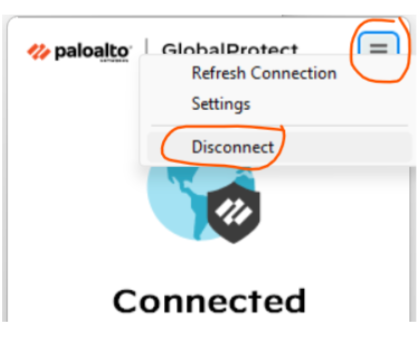
It will then show that you are Connected. To disconnect, click Disconnect in the menu at the top right of the VPN agent.
You must manually start the VPN client if you are using a computer not managed by HVL.
You will get protected access to the internet, as well as the services your role allows from such a computer (e.g., licenses or research and development resources).
Access is more limited here than on an HVL-managed PC.
External users who already have GlobalProtect through their own employer can add the portal gp2.hvl.no.