
Provide justification for the exam
This is how the examiner should provide justification for the grade assessment to the student
Students request justification for grade assessment via Studentweb. The examiner receives the request and responds to it in WISEflow. The examiner can decide whether to give the justification in writing or verbally.
For oral and practical exams, the student must request justification immediately after the result is announced. As a general rule, the grade should be made known, and the request for justification should be presented at the exam location on the exam day. If the student learns the result of the oral and practical exam in Studentweb afterward, the student must contact the internal examiner directly to obtain justification.
Content of the justification
The justification must 'explain the general principles that have been applied in the assessment and in the assessment of the candidate's performance' (according to the Norwegian Universities and University Colleges Act § 5-3 (2)).
This means that the student should be informed of:
- The general principles on which the examination committee based the assessment, and
- What specific aspects of the student's exam led to the particular result they received. For example, it is not sufficient to simply refer to the examiner's guidelines or learning objectives without mentioning the student's performance in relation to them.
How to provide justification
The examiner receives an email alert that there has been a question about justification that needs to be addressed. Typically, the exam is arranged such that the internal examiner receives the question about justification. If there are only external examiners for the subject, the question will be sent to them.
An overview of justifications can be found in WISEflow, here:
Click on the arrow to respond to the question about justification:
If there are multiple internal examiners per student, the question about justification is not assigned to a single examiner; instead, all examiners receive an email that there is an unanswered question about justification in WISEflow. The case will then be available under 'Not Assigned' on the same page. The examiners must agree on who will respond and retrieve the case from the list in WISEflow by clicking on the checkmark on the right.
If you have been assigned a justification that another examiner is supposed to respond to, you must remove the assignment by clicking on the 'X'. This will make it available for your co-examiner to pick up, as well as any external examiner.
By clicking on the arrow in the overview, you will be directed to the specific student's assignment in the examiner's tool. Even for subjects where the student has not submitted an assignment in WISEflow, but for example has written on paper, you provide justification here.
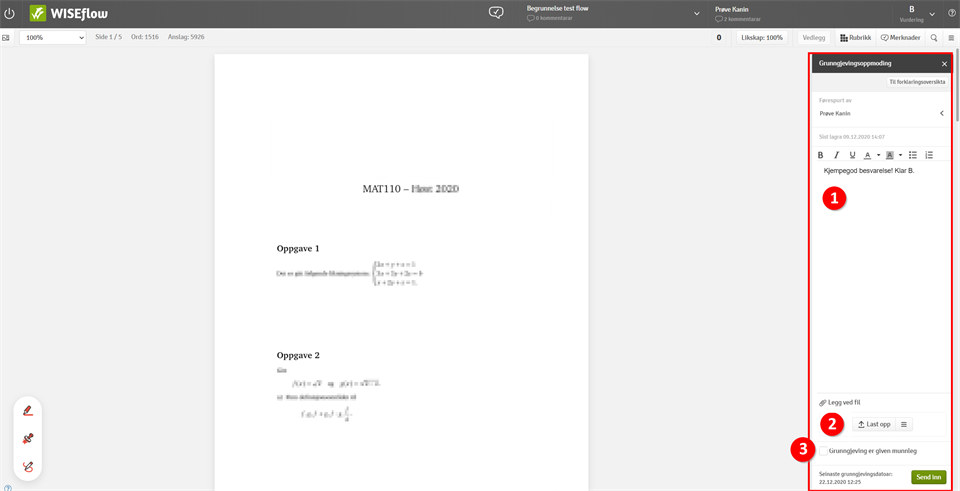
The dialog box where you write or upload the justification will also open automatically on the right side.
In this dialog box, you can:
- Write your justification directly in the dialog box.
- Upload a justification that you have saved on your hard drive. This can be a text document, such as a PDF or Word file, or a justification recorded as an audio or video file
or - Check the box indicating that the justification has been given verbally in case it is provided verbally instead of in writing. By clicking on the student's name, you will see their email address and phone number so that you can arrange an appointment with the student. It is essential to record that the justification has been given verbally, as the student's complaint deadline will be calculated from the time the justification is received. Remember to change the date for when the verbal justification was given if it is recorded on a different day than when it was provided.
Click 'Submit' once the justification is written, uploaded, or if the box is checked indicating that a verbal justification has been given. This completes the justification process.
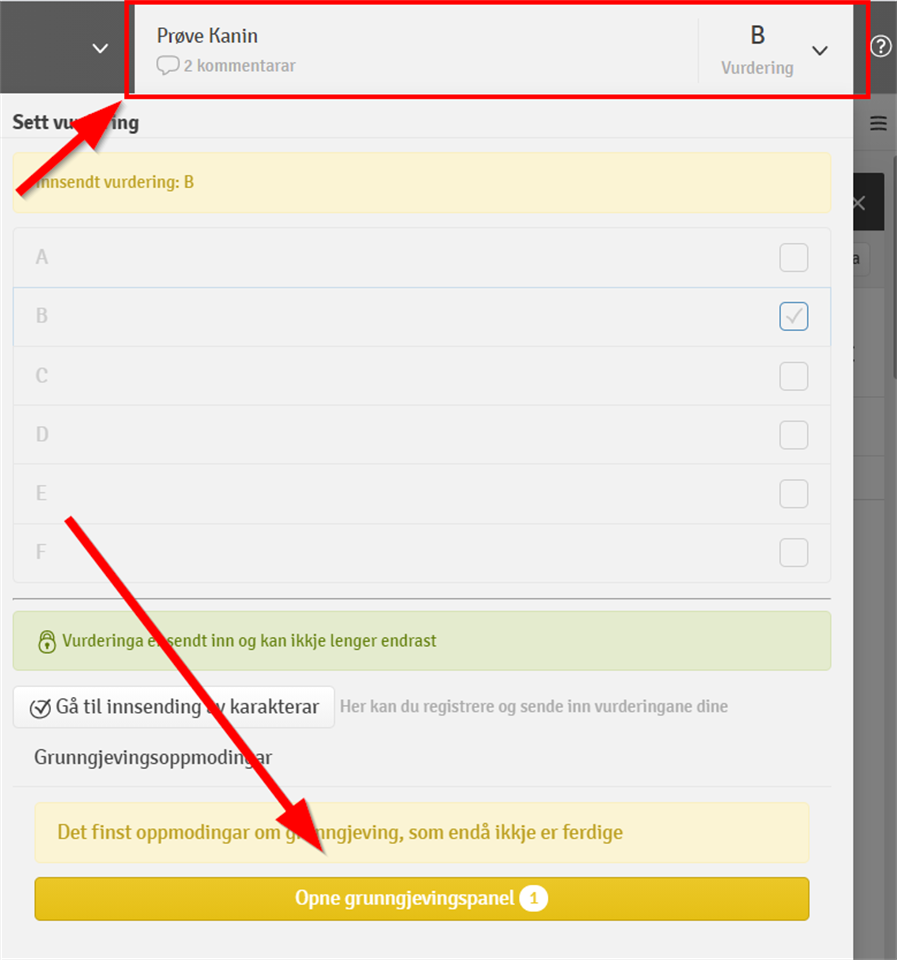
You are welcome to browse the student’s assignment, review notes, or cut and paste from the notes in the examiner's tool. To return to the dialog box (justification panel) from the student's assignment, click on the field at the top right to open the justification panel.
If you need to respond to multiple justifications, you can click on 'To justification overview' at the top right of the dialog box. This will take you directly back to the overview, where you can process the next justification.
Justifications that have been handled will be moved out of the overview and into the list of 'Completed Justification Cases.'
The deadline for providing justification is set to 2 weeks after the request is submitted, as the Universities and University Colleges Act states that justification should normally be provided within 2 weeks. However, it is technically possible to provide justification after this deadline.
Group examination
Students in a group examination must request and receive justification individually. The examiner will always be able to see what justification has possibly been shared with other group members at an earlier time, allowing them to copy it if needed.
Preparing a justification in advance
The examiner can define a final comment in WISEflow to serve as justification. This allows you to register justification for the candidate before the candidate has requested it themselves. The student will receive an email notifying them that justification is available in WISEflow when the grade is published.
To define a final comment as justification, click on the candidate number, select 'Add comment,' write your comment, and check the box for 'Justification.'